 Word Trainer
Turn a photo of a page into vocabulary you can train
The words are already in front of you: in the vocabulary box of the textbook, in your notebook from yesterday's lesson, on the whiteboard. Instead of typing them one by one, photograph the page. Word Trainer recognizes the words and the translations next to them, fills in the missing translations and gives you the list to check before it goes into your dictionary.
What you can photograph
- The vocabulary box of a textbook page or the word list at the end of a chapter.
- Handwritten notes, as long as the handwriting is reasonably clear.
- A whiteboard at the end of a lesson, before it is wiped.
- A printed handout or a two-column glossary.
How it works, step by step
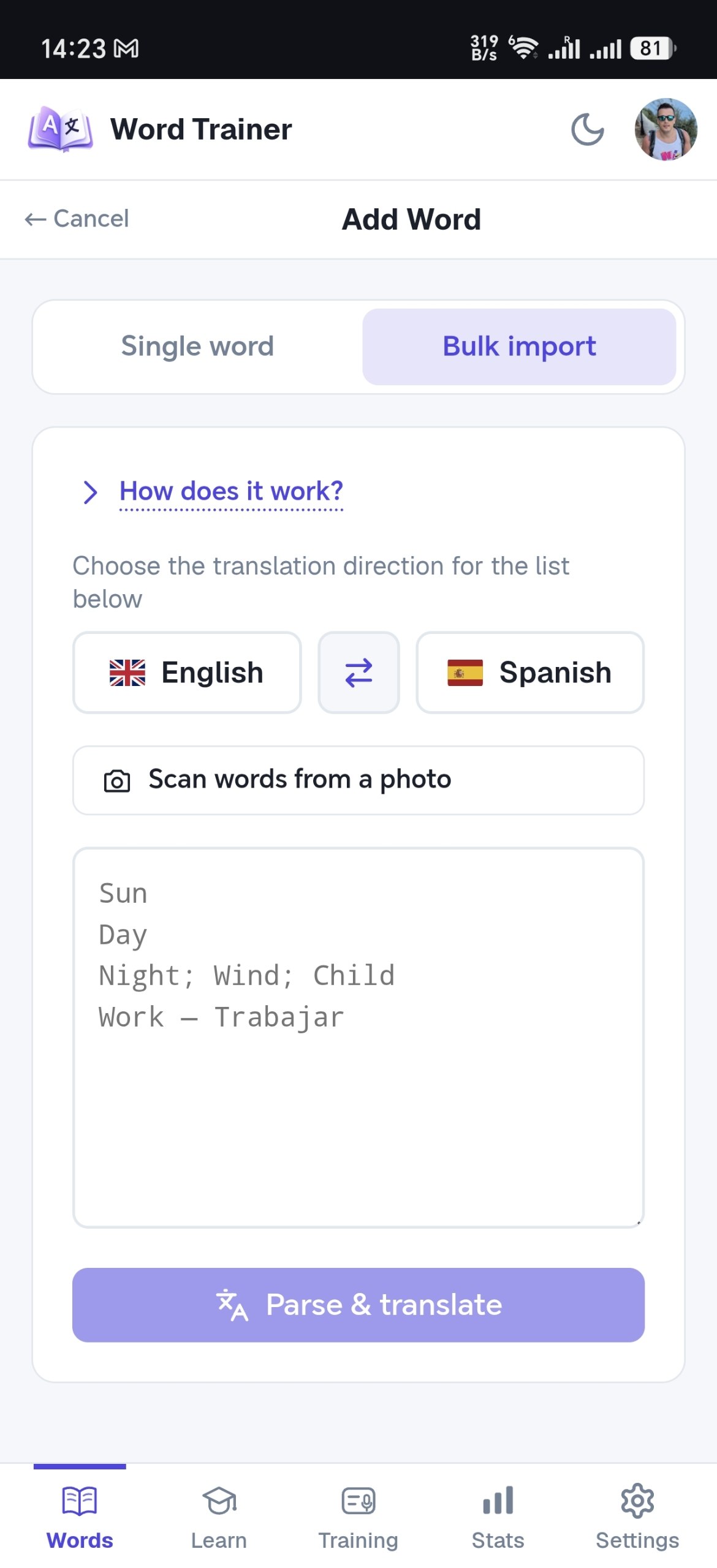
- Open Words, tap Add new word, choose Bulk import and tap Scan words from a photo. To put the words straight into a folder, open that folder first and add new words from there.
- Take the picture or pick one from the gallery. Frame the list and keep the page flat.
- Wait while the photo is read; a dense or handwritten page takes longer. The recognized words appear in the text box, where you can check and fix them.
- Tap Parse & translate: pairs of word and translation are kept as pairs, and words on their own get their translation filled in for the language pair you are learning. Check the list and fix anything before saving.
- Save the words. If you started inside a folder, they land in it; otherwise you can move them into a folder afterwards, for example the lesson or the chapter they came from.
What happens next
From there the words are ordinary entries: the Learn tab introduces them, flashcards follow, training with spaced repetition keeps them, and Listen mode plays them as a playlist. A page photographed after the lesson is in the repetition cycle the same evening.
Tips for a clean scan
- Good light and no shadow across the page.
- Hold the phone parallel to the page, not at an angle.
- When a page has two separate word lists side by side, photograph one list at a time.
- Fill the frame with the list, or crop the photo before you pick it; the rest of the page only adds noise.
- For handwriting: print clearly and keep each pair on its own line.
Privacy and allowances
The photo is compressed on your device and sent for recognition together with your language pair. Word Trainer does not keep it: the image is discarded as soon as the words come back.
Recognition comes with a monthly allowance of photos: a few on the free plan, more on the paid plans. A scan that fails for a technical reason, such as a timeout or a busy service, does not count against it.
Why not just type?
Typing forty pairs is ten minutes you may not have: the lesson ends, the book closes, the list stays on the page. A photo is a few seconds of your time, and the words can be in your trainer before you leave the classroom.
Frequently asked questions
Does it read handwriting?
Yes, if it is reasonably clear: printed letters, one pair per line, a pen rather than a pencil. Very cursive or crowded notes are better photographed one half at a time.
Which languages can it recognize?
Any of the 17 languages in the app, in Latin and Cyrillic scripts, with their accents and special letters. The language pair of your dictionary tells the recognition what to expect.
Can I fix a mistake before saving?
Yes. The recognized words land in the list as text, so you can correct a letter, remove a line or add a missing translation before they are saved.
Does Word Trainer keep my photo?
No. The photo is sent for recognition, the words come back, and Word Trainer discards the image.
Photograph today's lesson
The vocabulary box on the page becomes words in your trainer, without typing them one by one.
Start for free